How it works
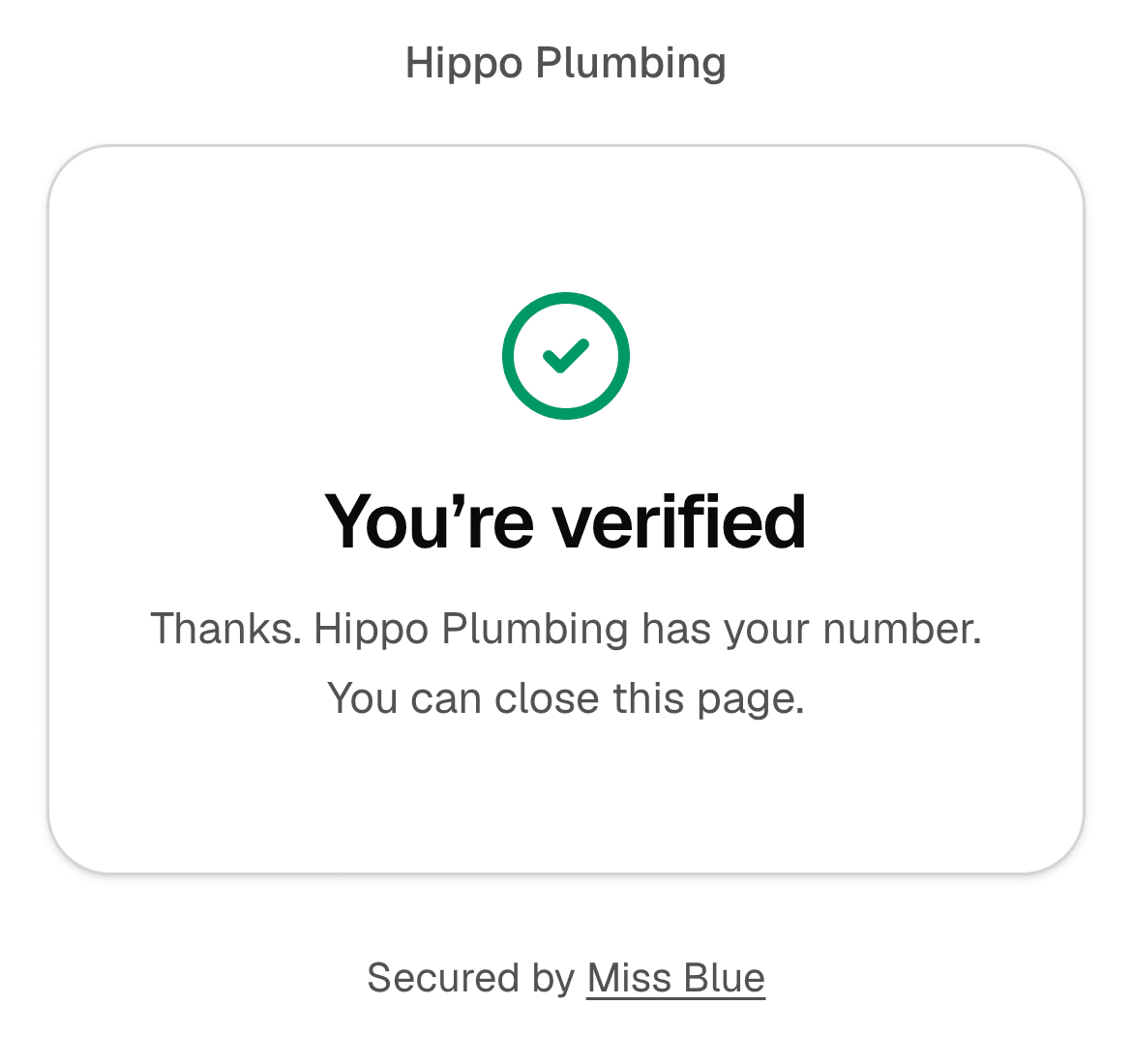
Your site asks Miss Blue for a code and shows your customer a page with six digits on it. On a phone they tap Open Messages and the code is already typed; on a computer they scan a QR code. They send it to your number, and the page turns to You're verified.
Because they text you, rather than you texting them, it proves they hold that phone, tells you whether it is on iMessage, and starts a conversation they chose to start. You can text them back as much as you need, and it never counts as reaching out to somebody new.
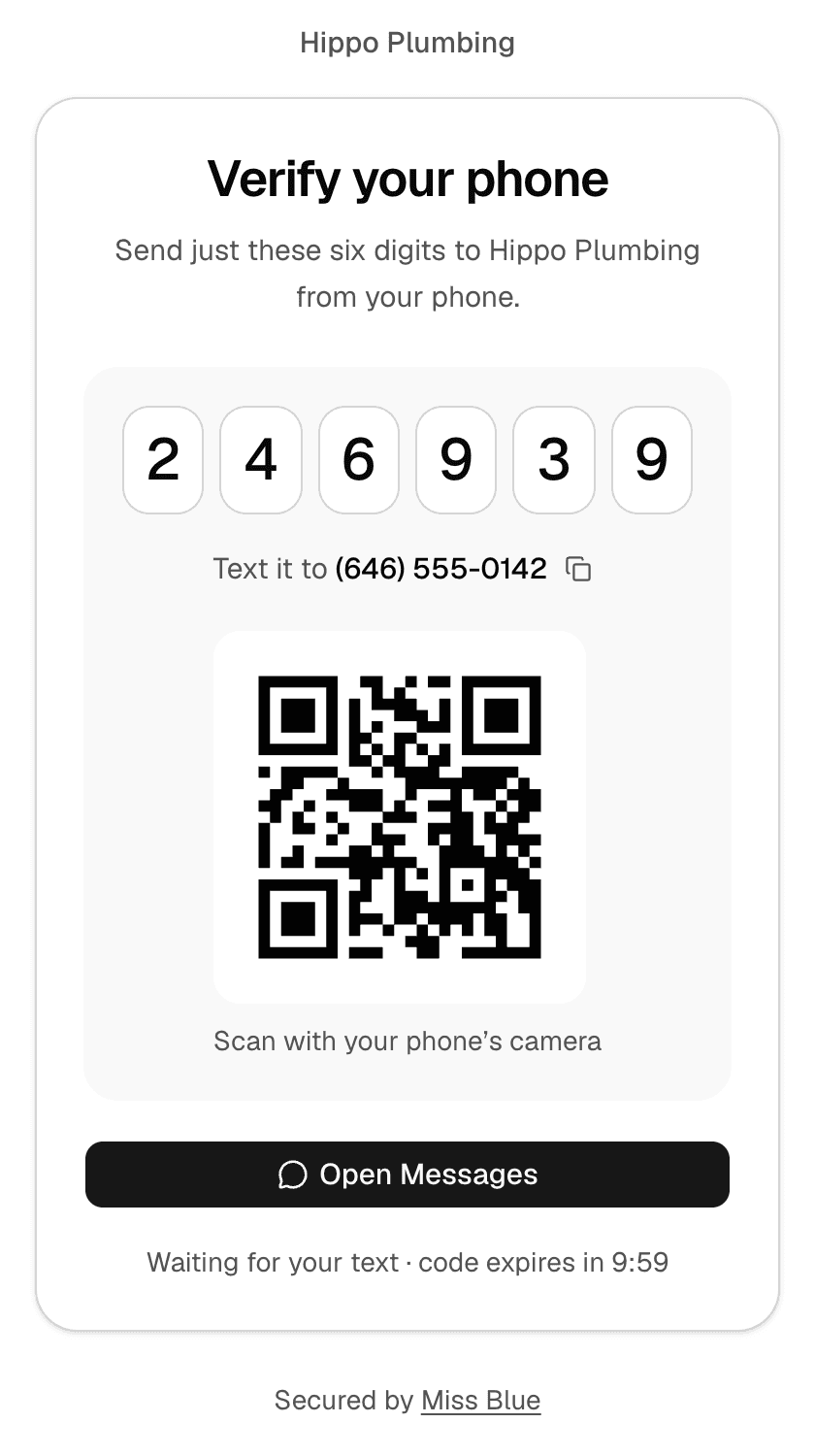
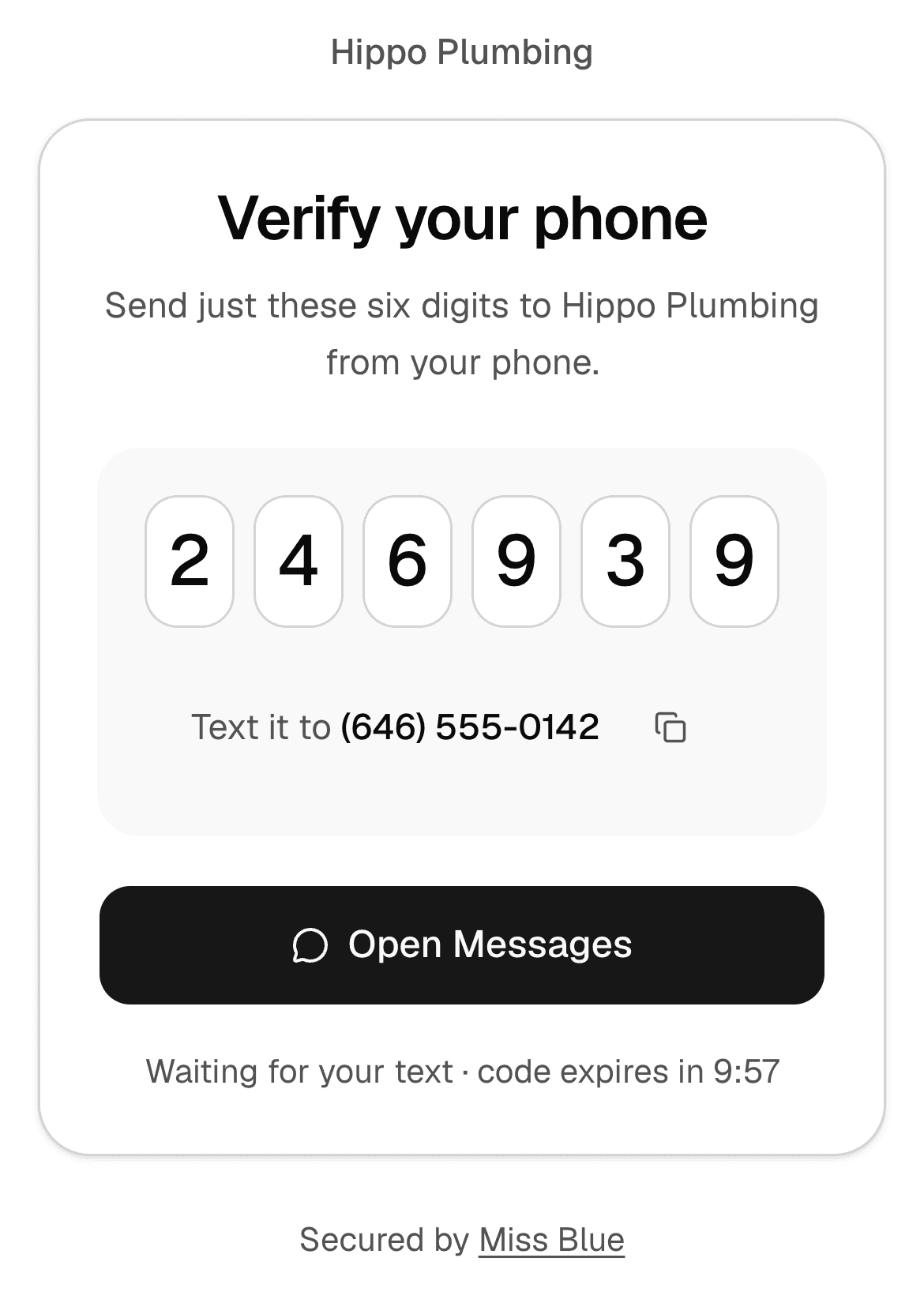
Try it with your own phone
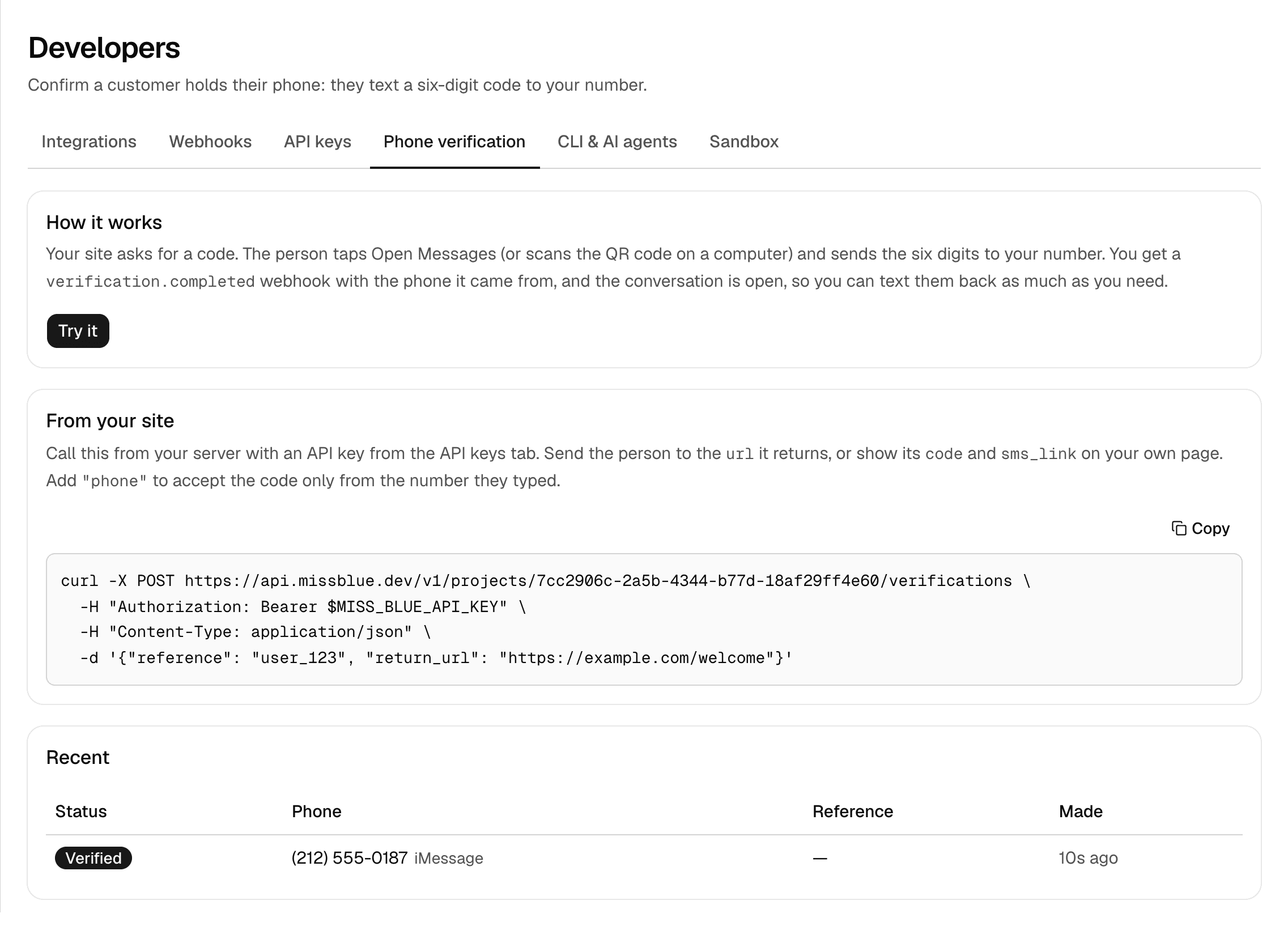
- Open your project, choose Developers, then Phone verification.
- Choose Try it. The page your customers will see opens in a new tab.
- Scan the QR code, or open the page on your phone and tap Open Messages, then send.
- Watch the page say You're verified, and the code appear as Verified under Recent with your phone number.
Add it to your signup or checkout
Your developer calls the API from your server with an API key. Each call returns the code, a link that opens Messages with it typed, and the page to send your customer to. When the code arrives you get a verification.completed webhook with the phone it came from, or you can ask for the result.
If your form already asks for a phone number, pass it along: then only a text from that phone completes the verification.
Good to know
- A code is six digits and lasts ten minutes unless you choose otherwise.
- The text has to be just the code. A message with other words in it is treated as an ordinary conversation, so your customers' real questions always reach you.
- Your number answers a completed code with a short thank-you you can change or turn off. A code from the wrong phone, or one that has expired, gets a reply saying it did not work.
- Verification texts do not start your automations or email your team: they are signups, already answered.
- It works on your dedicated iMessage numbers.