What scheduling actually does
A scheduled message is an intention, not a message sitting in a queue. Nothing about it is decided until the moment it fires, which is why a message scheduled on Monday for Friday still goes through every check on Friday.
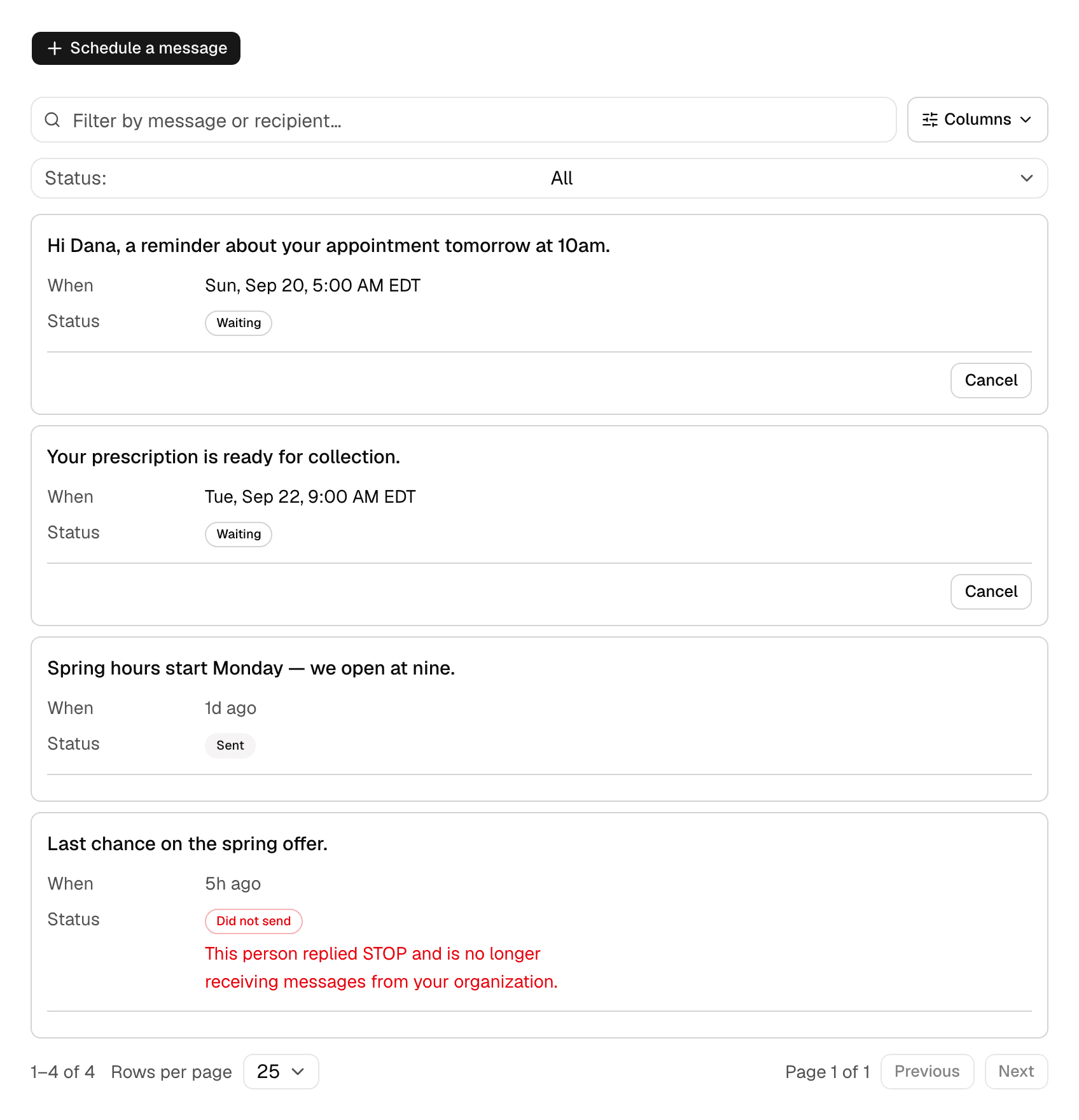
That matters most for the checks you would rather not think about. If the recipient replies STOP on Wednesday, Friday's message does not send, and the row says so in the same words you would have seen sending by hand.
Schedule one
- Open Message Tools in your project and choose Scheduled.
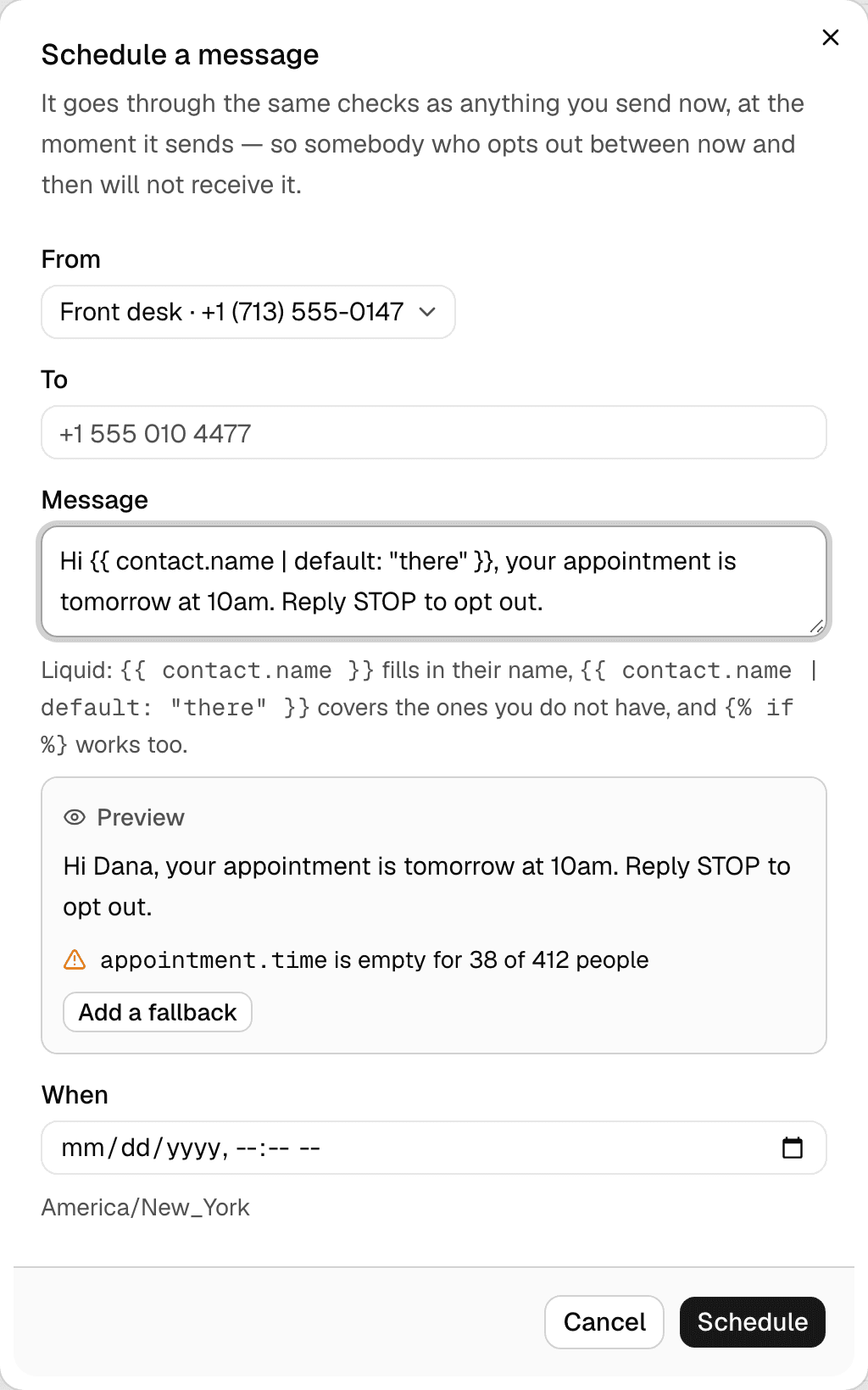
- Choose Schedule a message, then pick the number it goes from and who it goes to.
- Write the message. Variables like {{contact.name}} are filled in when it sends, not when you write it.
- Pick the date, the time, and the time zone that time means. Nine in the morning means nine where you said, not where you happen to be reading the screen.
- Choose Schedule. It appears under Waiting with the exact moment it goes out.
Change your mind
Anything still under Waiting can be rewritten or cancelled, and the list keeps showing the words that actually went rather than the words you wish had.
Once a message has sent, this list is no longer where you change it. Open the conversation instead: an iMessage can be edited for about fifteen minutes and unsent for about two, and both are visible to the person who received it.
A cancelled message never becomes anything. It is not sent quietly later and it is not counted as sent.
Quiet hours hold it for their morning
Quiet hours are on unless you untick them: the message reaches its recipient only between 8 AM and 9 PM in their own time, or tighter where their state requires it. Pick a time that is night where they are and it goes at their morning instead. The list shows when it will really go, marked “their morning”, and keeps the time you picked.
Untick Quiet hours for a message that belongs outside them, like a reminder somebody asked for at 6 AM.
If it did not send
Look under Already dealt with. A message that failed carries the reason in full: somebody opted out, the line moved to another project, the recipient is blocked, or the new-contact limit for that line was reached that day.
"It did not send" is not an answer anybody can act on, so the row never says only that.